Understanding new, subject-specific terminology can be challenging, particularly for first-year students and students working in an additional language. Traditionally, we might provide students with a static PDF or a list of key terms at the start of a unit.
However, it is possible to turn a static document into a more active learning experience using the tools available to us in Moodle and Padlet.
Here are three approaches, depending on whether you want students to co-create terminology, access a structured reference resource, or explore concepts visually.
- Moodle Glossary (Video 6 minutes, 21 Seconds)
- Moodle Book
- Padlet
Moodle Glossary: for collaborative knowledge building
Best for: collaborative definition-building and terminology students encounter throughout Moodle.
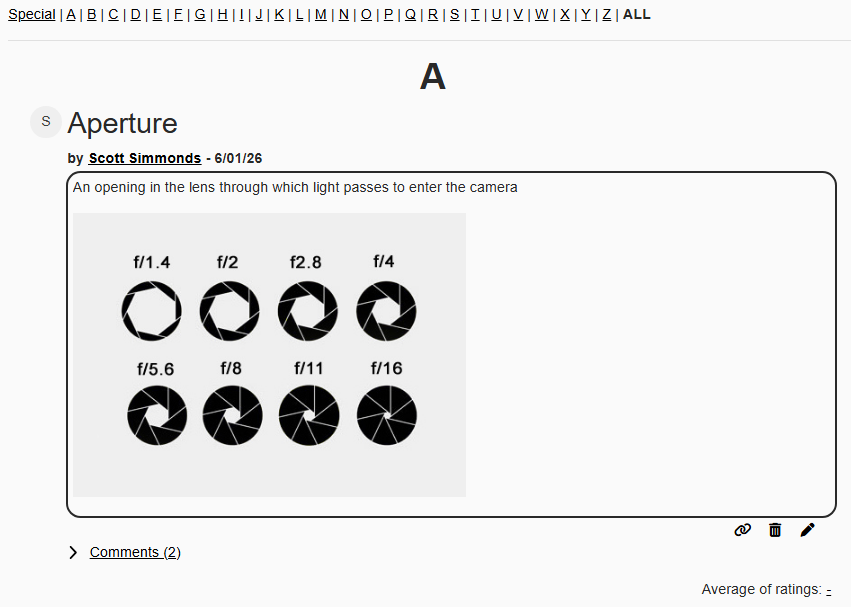
The native Moodle Glossary is a highly versatile tool that allows participants to create and maintain a list of definitions, much like a dictionary.
While you can populate it yourself, it is also possible to make it collaborative. You could assign students a particular week in which they are responsible for adding new terms, either individually or in groups, together with definitions and examples.
During the annual Moodle rollover, student-generated glossary entries are cleared, while the activity itself is retained, giving the next cohort the opportunity to build their own glossary.
Advantages:
- Asking students to co-create the glossary can help foster a collaborative learning community. Students learn from each other’s interpretations and take ownership of the course content.
- When auto-linking is enabled, any term entered in the glossary will automatically become a clickable hyperlink wherever that word appears in the course e.g. in discussion forums, text and media areas, uploaded files. This provides contextual support at the point where students encounter an unfamiliar term.
- You can enable comments and ratings, allowing students to peer review and refine each other’s definitions. This encourages students to analyse and evaluate each other’s inputs.
Moodle Book: for a structured reference guide
Best for: an academic-curated reference guide organised around topics or stages of the curriculum.
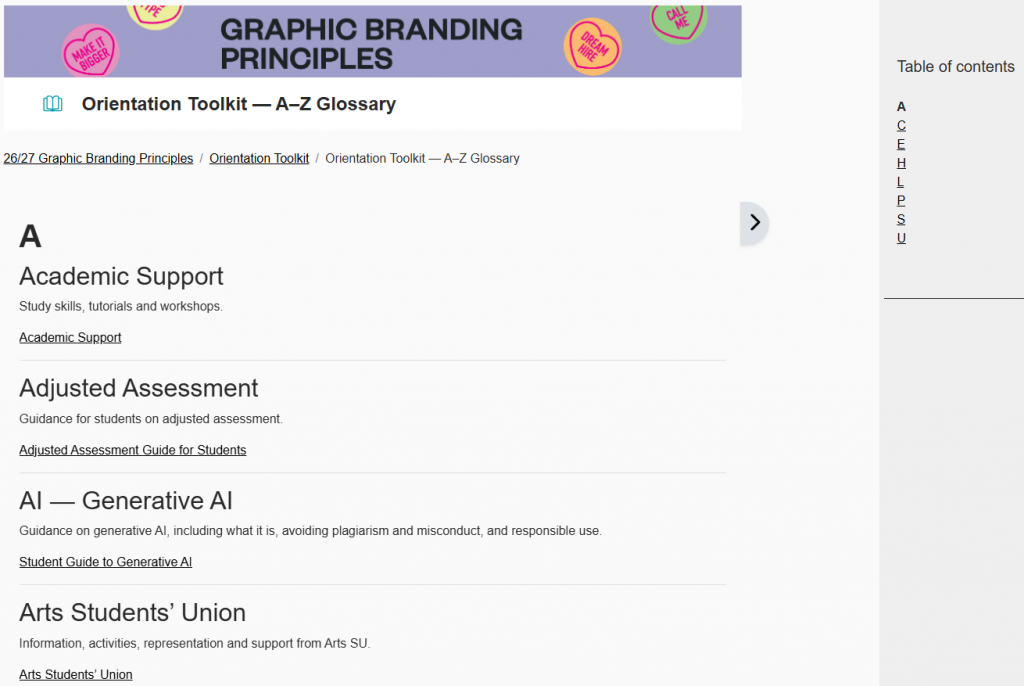
The Moodle Book activity enables you to create multi-page resources in a book-like format, complete with chapters and subchapters.
Unlike the collaborative Glossary activity, a Moodle Book is usually curated by the academic. Rather than functioning as a traditional A-Z glossary, it can provide a structured reference guide to key concepts and terms.
Because Moodle Books are static, they carry across to the following year during rollover, and as such can be built upon year after year.
Advantages:
- Breaking complex information into shorter, logically organised chapters can make a reference resource easier to navigate and digest. The Book activity chunks information into digestible, logical chapters, helping students process one concept at a time.
- Because you control the narrative, you can structure the “glossary” to mirror the progression of the syllabus. You can guide the students’ learning from foundational concepts through to advanced theories.
- Unlike a static Word or PDF document, each chapter of a Moodle Book can embed recordings, H5P activities, images and diagrams alongside the text, giving students multiple ways to engage with a concept.
Padlet: for visual and multimedia exploration
Best for: a visual, multimedia glossary built around examples, images and student contributions.
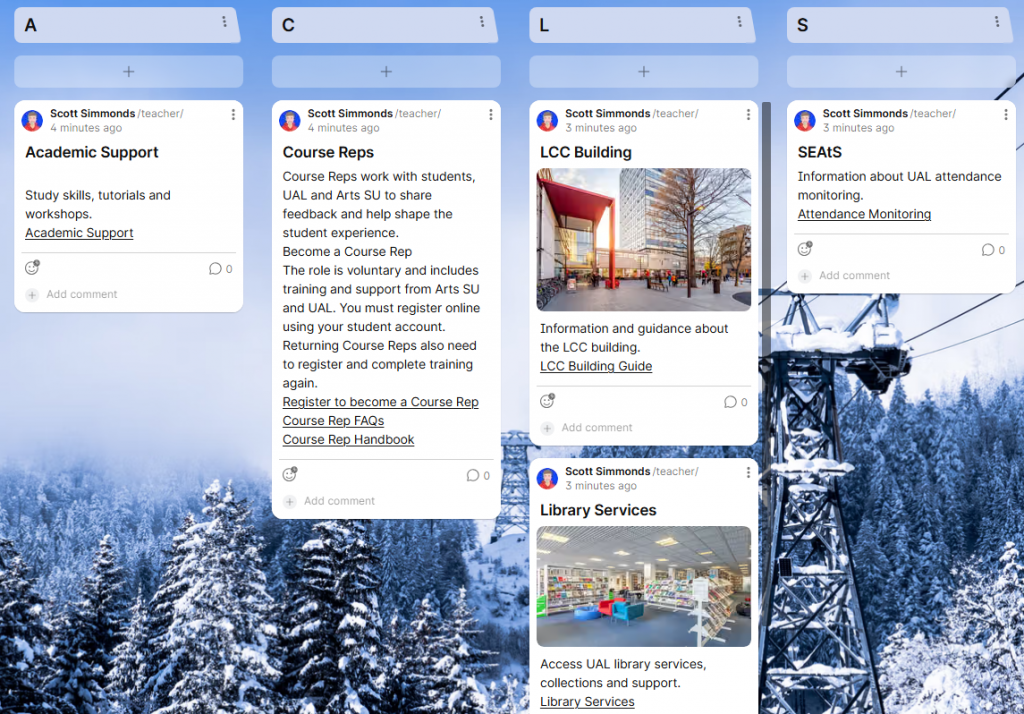
Padlet is a digital canvas or interactive pinboard that can be easily embedded directly onto a Moodle page.
If you want a highly visual, low-barrier way for students to define terms, Padlet is an excellent alternative to text-heavy lists. You can ask students to define a concept by finding a real-world example, a news article or an image that represents it, and pinning it to the board.
Because the Padlet exists separately from Moodle, the same board can be embedded for a new cohort if you want students to build on previous contributions.
Advantages:
- Padlet supports contributions in a range of media, including images, audio, video and links. Asking students to select an image, example or resource that represents a term requires them to interpret the concept rather than simply reproduce a definition. Combining definitions with images, audio, video or examples can help students explore abstract terminology in different ways.
- The gallery-style layout allows students to see and respond to one another’s contributions. The informal, visual format can also encourage contributions from students who may be less comfortable participating in more formal discussion activities.
- By asking students to curate external links and media, you are bridging the gap between theoretical course content and real-world application, helping students connect disciplinary terminology with its use in real-world contexts.
What next?
The right approach depends on what you want students to do with the terminology. If you want students to build definitions together, try a Moodle Glossary. If you need a structured reference resource, consider a Moodle Book. If you want students to explore terminology through examples and multimedia, Padlet may be a better fit.
If you’d like to explore which approach would work best for your unit, contact the Digital Learning Team (lccdigitallearning@lcc.arts.ac.uk). We can talk through the options, co-design and build an activity that meets your learning objectives.
Leave a Reply
You must be logged in to post a comment.