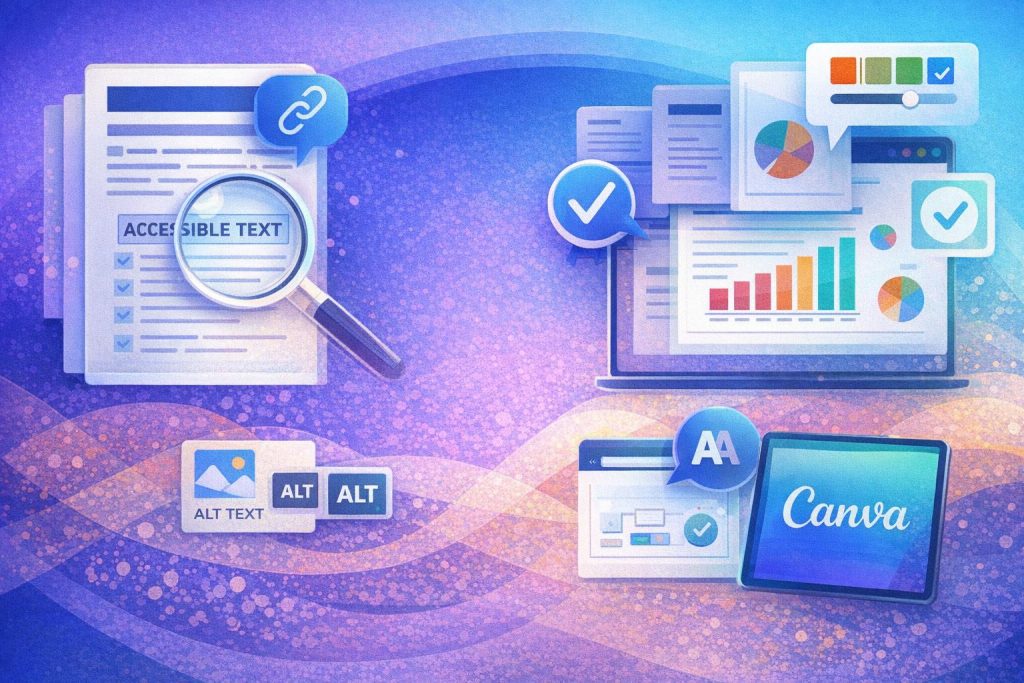
Canva is a graphic design platform widely used by both staff and students to create slides, infographics, posters, short videos, social media content, and visual learning resources. You need to create content that is accessible from the beginning of the process, but the good news is that Canva does include helpful accessibility tools to use along the way.
This blogpost offers guidance on how to use Canva in your content creation while still meeting accessibility requirements.
Why accessibility matters
There are several reasons why accessibility matters, but put simply, it is the right thing to do. In 2025/26 18.5% of UAL students, across all fee statuses, levels and years, declared a disability. This is a significant proportion of students in your classroom, and most importantly, this number only reflects those that have declared a disability. The real number is likely to be far higher, and you could be accidentally excluding them from participation through inaccessible content.
Creating accessible content improves the usability for all users; it increases the discoverability of resources and provides a competitive advantage. Finally, there is also accessibility and equality legislation that we must adhere to.
Good accessibility practice ultimately:
- Supports disabled students
- Improves clarity for all learners
- Reduces the need for individual reasonable adjustments later
Using Canva’s Design Accessibility Checker
Accessibility in Canva, as with every other platform, largely depends on what you create, and how you create it, as to whether it is truly accessible
Canva’s Design Accessibility Checker is an important built‑in tool for creators to use before sharing materials. It is important to remember that Canva is not a compliance solution, it is an accessibility supporting tool.
What does the Canva Design Accessibility Checker cover?
- Colour Contrast: it will highlight contrast issues and provide suggestions for alternative options.
- Alternative Text: images without alt text will be highlighted and you can either write, edit, or AI generate text, or alternatively you can ‘mark as decorative’.
- Typography: font issues should be highlighted and alternative options suggested.
You can also reduce motion in moving elements or videos, which is particularly important for those with epilepsy. ‘Navigate by layer’ is an option that allows you to control the precise order in which screen readers and assistive technologies interpret and read content.
How to access
- Click on ‘File’
- Click on ‘Accessibility’
- Click on ‘Check design accessibility’, ‘Reduce motion’ or ‘Navigate by layer order’
This should be treated as a minimum baseline check, not a sign‑off for an accessibility tick box.
A note of caution on PDFs
It is important to note that exported PDFs are not consistently fully accessible, particularly for complex layouts, tables, or multi‑column designs.
Core learning materials (handbooks, policies, assessment guidance) should be created in tools with stronger PDF accessibility controls, as well as accessibility checked and remediated before release.
Blackboard Ally
Blackboard Ally is a platform that integrates with Moodle and focuses on making digital content more accessible. Whenever you upload a supported document to Moodle, Ally works behind the scenes to convert this file into several accessible alternatives.
As of 2025/26 LCC’s Moodle courses have an average score of 87%. To improve your score, you must upload documents that are as accessible as possible and fix any remaining issues. Ally will highlight issues, explain what the problem is, and provide step-by-step guidance on how to fix it.
Reading Order
A clear reading order helps screen reader users navigate your content in the sequence you intended, making information easier to understand and follow. In Canva, reading order is calculated automatically, but for more complex designs you can use the Layers panel to arrange content in the correct order and choose Match reading order to layers when exporting your PDF.
Before exporting, download as a Digital PDF and ensure Flatten PDF is unchecked to preserve accessibility tags and support screen reader navigation. Visit Canva’s PDF Accessibility Features page for more information.
Alternative text is not an optional extra
Alternative text is a short, written description of an image added to digital content. It serves as a text alternative for visually impaired users via screen readers.
In Canva:
- Add alt text to images that give context
- Mark decorative elements as ‘decorative’
- An element is decorative if it adds no context
- Review AI‑suggested alt text carefully before accepting it
Alt text should support understanding, not merely describe appearance.
Example:

Human authored description: A person in bright red clothing performs a high kick against a vivid blue backdrop, casting a strong shadow that highlights their dynamic, energetic pose.
Automatically generated image description: A person in a red outfit.
Colour, contrast and inclusive design
Low contrast, dense layouts and decorative fonts are among the most common accessibility failures.
When creating content in Canva:
- Use strong colour contrast at a minimum of 4.5:1 for ‘normal sized’ body text (12pt)
- Avoid using colour alone to convey meaning (e.g. “red = fail”)
- Choose sans serif fonts at appropriate sizes
Canva’s automatic checker will flag obvious contrast issues, but manual testing remains essential, especially for complex visuals or data. There are several easy-to-use Colour Contrast Checkers available.
Captioning video and audio content
Captions help everyone daily with approximately 50% of users turning on captions for video and audio content. It is particularly important to remember that captions are a requirement for teaching materials.
Canva supports:
- Auto‑generated captions
- Caption editing
You must still:
- Review accuracy
- Correct technical or subject‑specific terminology
- Ensure captions are present before publishing learning materials.
Some noted limitations in Canva
- The Design Accessibility multi-select function isn’t currently available in Canva Docs
- There are often ‘false positives’ on issues, particularly in font selection. Manual testing will reassure you on accessible content
- Using the Design Accessibility feature does not make your content automatically compliant under UK legislation.
For support in making your Canva content accessible, please contact LCC Digital Learning LCCDigitalLearning@lcc.arts.ac.uk
Further guidance and resources:
- Make Things Accessible – a repository for accessibility guidance materials
- AT Hive – explore assistive technology (AT) and how it can help
- My Computer My Way – for advice on making your device easier to use if you have a disability
Leave a Reply
You must be logged in to post a comment.